Organize sequences with Projects and Parts
Use Projects and Parts to group related sequences, constructs, and results so you can track your work clearly.
Before you start
- You have sequences or constructs in your workspace.
Step 1 — Group related work in Projects
- Open the
Projectsarea in the left sidebar. - Create folders that match how you work, such as by construct family or experiment.
- Move related plasmids, parts, files, and alignments into the same area so they stay easy to find.
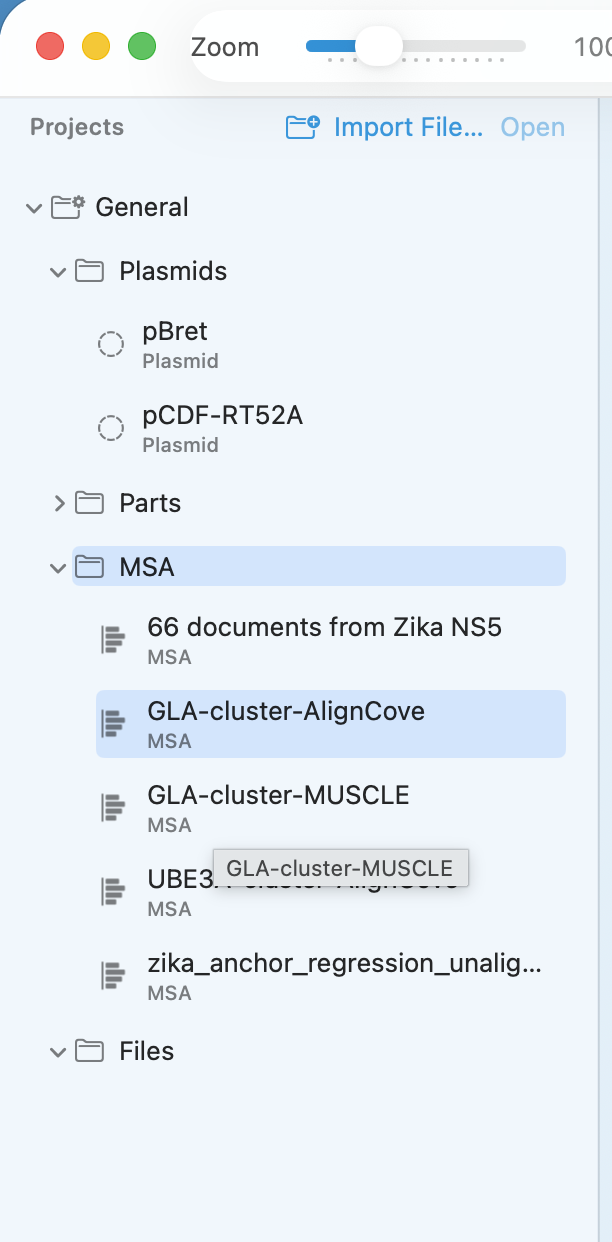 Use
Use Projects to keep related constructs and results grouped in one place while you work.
Step 2 — Add sequences and files you need
- Add the sequences you want to keep with the project as plasmids or parts in the current workspace.
- In
Projects, clickImport File...when you want to keep a PDF, image, or other supporting file with the same work. - Select the new
Fileitem and open it when you need the reference during review or cloning.
 Keep supporting files close to the related constructs instead of leaving them outside the workspace.
Step 3 — Review and reuse the organization
- Open a part explicitly when you need to inspect it or stage it into cloning.
- Use
Use as InsertorUse as Backbonewhen a part should feed directly into the next cloning step. - Reorganize folders if variants, validation results, or related constructs are hard to scan.
Check your result
- Related sequences are grouped logically.
- You can move between constructs without searching through unrelated items.
- Supporting files and downstream part actions stay tied to the right work.
If it doesn’t look right
- Sequence not visible: confirm it is in the current workspace and grouped where you expect.
- Wrong grouping: move the item or create a clearer folder structure.
- Missing context: add the supporting file or return to QC review for the related construct.