Import, inspect, and export a DNA sequence
Use this page when you want to bring a plasmid or DNA sequence into RayCrest MDS, review it in Sequence view, and export it in a clean handoff format.
Before you start
- Open the workspace you want to use.
- Keep the DNA file you want to import nearby.
- Supported DNA import formats include GenBank, FASTA, and SnapGene
.dna. - If your sequence lives in NCBI or Addgene, start with
File > Import from Website..., then follow the same inspection and export steps below.
Import the sequence
- Open
File > Import Sequence (GenBank/FASTA/SnapGene .dna).... - Choose the file you want to import.
- Confirm the import.
- If needed, select the imported plasmid in the left sidebar.
Check your result - The imported plasmid appears in the sidebar. - The plasmid opens in the main viewer.
Watch for this - Native Geneious files are not imported directly. Re-export those files as GenBank or FASTA first.
Switch into sequence view
- Open the top
Viewpicker. - Choose
Sequence.
Check your result - The linear sequence workspace appears and the sequence editor is active.
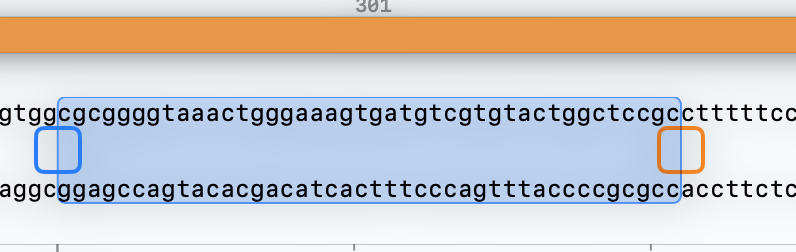 Use
Use Sequence view when you need to inspect the bases directly, make a small edit, or confirm the active region before export.
Inspect the sequence before you export
- Turn on the overlays you need:
ProteinORFsRestrictionPrimers- Open the features filter and keep only the classes you want to inspect.
- Use
Findif you need to jump to a sequence or protein match.
Tip - Turn off overlays you are not using before checking a short edit by eye. The cleaner view makes it easier to confirm that the right region is active.
Export the sequence
- For FASTA, choose
File > Export Sequence (FASTA).... - For a richer handoff file, choose
File > Export for SnapGene / Benchling / Geneious / CLC (GenBank).... - Choose the destination and save the file.
Check your result - The export file is written to the location you selected. - The file type matches the format you intended to share.
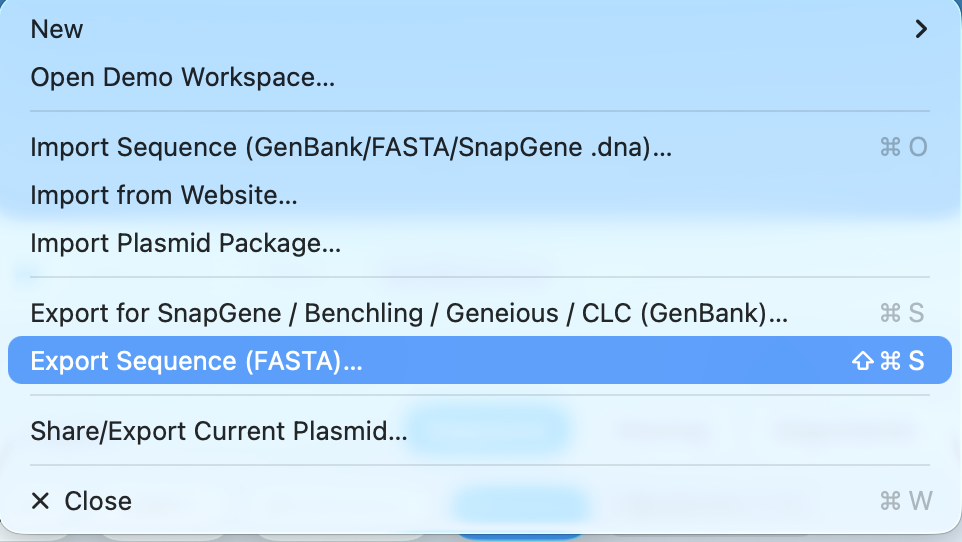 Use FASTA for simple sequence handoff and GenBank when annotation context matters downstream.
If it doesn't look right
- The export commands are disabled:
- Re-select the plasmid in the sidebar so the sequence is the active object.
- The imported file does not open:
- Check the extension and confirm it is a DNA sequence file, not a protein-only file.
- The sequence view looks cluttered:
- Turn off overlays and feature classes you do not need for the current check.
Related pages
After confirming sequence length and identity, convert nucleic-acid mass and moles or estimate DNA copies per µL for a separate quantified sample. Neither calculator reads the active Mac document or transfers sequence data.