Review sequencing QC and history
Use this workflow to track validation results across sequencing runs and confirm construct integrity over time.
Before you start
- You have reviewed at least one sequencing run.
- Your sequence is associated with runs or reads.
Step 1 — Open QC and history
- Open the sequencing QC area for the active construct.
- Review
Current QC,Reads & Evidence, andQC History. - Click
Historyin the main toolbar if you need to compare an earlier construct checkpoint.
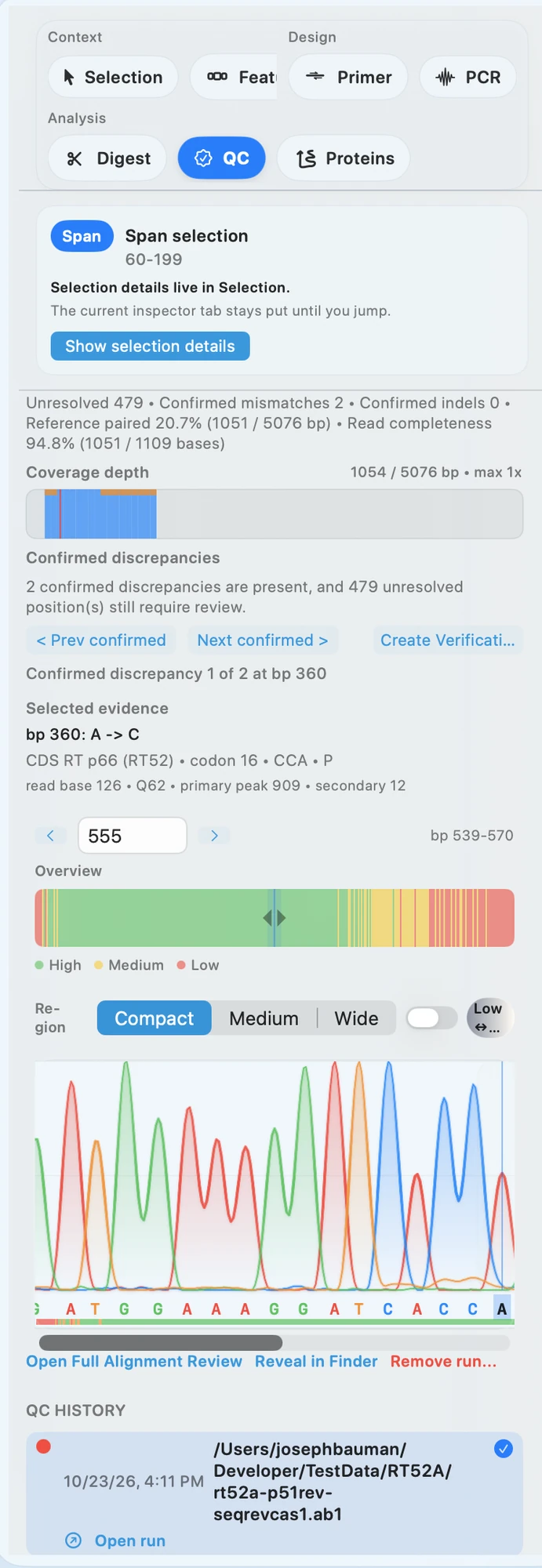 Open QC first so the current call, supporting evidence, and earlier QC entries stay in one view.
Step 2 — Review validation results
- In
Current QC, compare theFinalresult withAutoif both are shown. - In
Reads & Evidence, open the related run when you need to inspect mismatches, run summaries, or chromatogram evidence. - Decide whether the issue is isolated to one run or repeated across the available evidence.
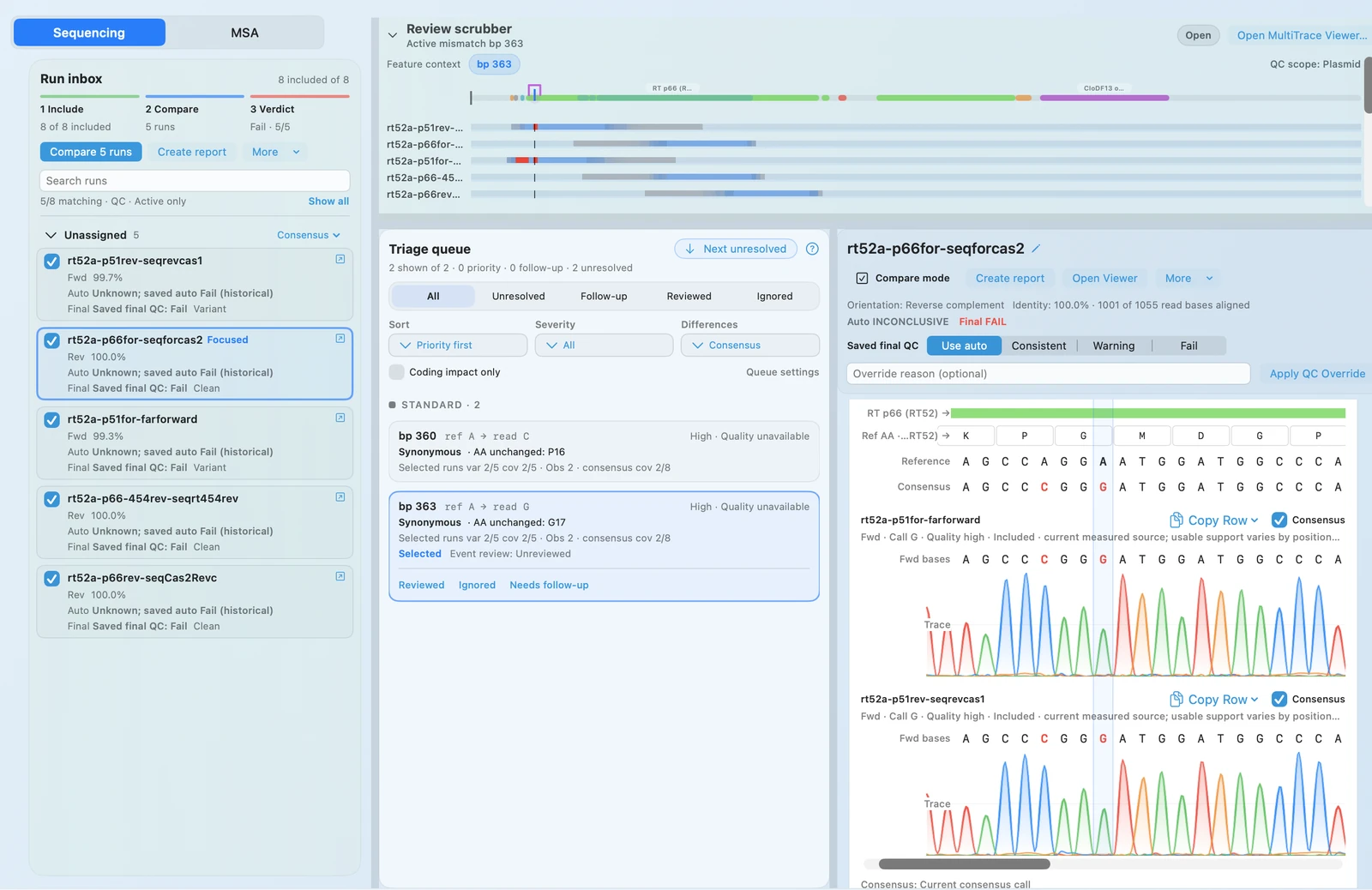 Use the run detail when the QC label by itself is not enough to explain what changed.
Step 3 — Compare across runs and checkpoints
- In
QC History, compare earlier QC entries for the same construct. - Open the related run when you need to verify a repeated issue or a changed result.
- If the construct changed after a fix, use
Historyto confirm you are looking at the expected checkpoint.
Check your result
- You understand whether the construct is validated.
- Any issues are clearly identified and localized.
If it doesn’t look right
- Conflicting results across runs: compare the run summaries and supporting evidence side by side.
- Unexplained mismatches: return to sequencing review and inspect the evidence again.
- Missing data: confirm the reads were imported for the current construct.
What to do next
When a run record includes a concentration-based reference standard, convert nucleic-acid mass to moles and molecules while keeping the calculator's approximation and integrity limitations with the record.